SketchUp to Render AI
SketchUp AI render converts a viewport screenshot of a SketchUp model into a photorealistic architectural image in seconds. ArchiGPT runs in a browser, so the workflow sits between modelling and presenting.
Four steps produce the image: frame the view, upload the screenshot, describe the result, generate the render. Our rule holds across our AI render tools — screenshots and image exports only, which keeps the model off the server.
ArchiGPT serves concept, iteration and early client visuals, while V-Ray, Enscape and D5 Render remain the photorealistic rendering production path.
Instant design alternatives
No GPU needed
Photorealistic results


SKETCHUP MODEL
RENDER
How Do You Render a SketchUp Model with AI?
Rendering a SketchUp model with AI takes four steps: framing the view in SketchUp, uploading the screenshot, describing the result and generating the image. Total elapsed time runs to seconds, and no installation stands between the SketchUp model and the ArchiGPT render.
SketchUp ships display styles rather than a production renderer, so a plugin, an engine or an AI service produces the image, and ArchiGPT is the third route. The steps of a SketchUp AI render are given below:
1. Frame the view in SketchUp and capture a Monochrome or Shaded screenshot.
2. Upload the screenshot to ArchiGPT in the browser, without installing an extension.
3. Describe the materials, the light and the site context in a prompt.
4. Generate the render, compare the variations, download the result.
Frame the SketchUp View
.webp)
A SketchUp render begins with a viewport screenshot taken in a Monochrome or Shaded style, with the edges you do not want emphasized hidden. Capture quality governs render quality more than any other ArchiGPT input. The capture settings that produce the strongest SketchUp input are given below:
-
Display style — Monochrome or Shaded for massing, Shaded with Textures for painted faces.
-
Edges — hide profiles and unwanted edges before capture.
-
Camera — eye-level, aerial, or section perspective.
-
SketchUp Scenes — camera and style saved as one repeatable capture point.
-
Resolution — a long edge of 1,000 px or more.
Upload the Screenshot
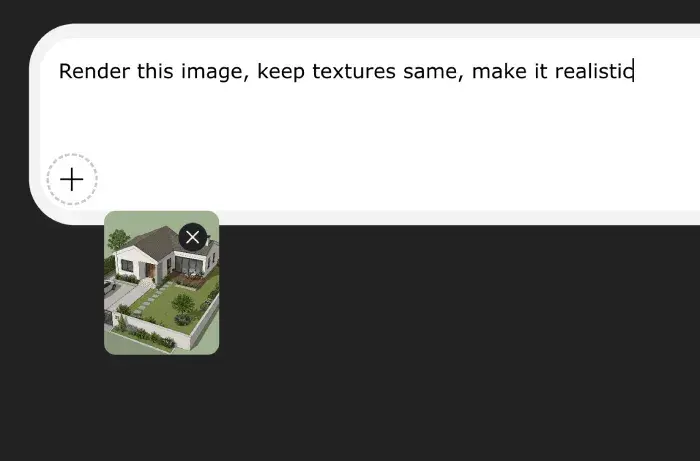
The second step uploads the SketchUp screenshot to ArchiGPT in a browser, with no extension installed and no SketchUp file transferred. Accepted inputs stay simple: JPG, PNG and PDF export pages, up to 4 images per generation. ArchiGPT appears nowhere in the Extension Warehouse, so readers seeking an AI render plugin for SketchUp reach a browser page instead.
Describe the Render
The prompt supplies everything the SketchUp model omits: material, time of day, site context and mood. Prompt writing carries the highest leverage of the four ArchiGPT steps, because an untextured massing model gives geometry and nothing else. The four descriptive slots are given below:
-
Material and finish — board-formed concrete, larch cladding, a named colour.
-
Light and time of day — golden hour, midday sun, overcast light.
-
Surroundings — entourage, paving, street trees, neighbouring buildings.
-
Camera mood — calm editorial, warm documentary, dramatic low angle.
Generate the Render

Generation returns a photorealistic image from the SketchUp screenshot in seconds. The iteration loop matters more than the first result: adjust one prompt slot, regenerate, compare. ArchiGPT returns up to 4 images per generation, which covers a multi-view set drawn from several SketchUp Scenes.
Which SketchUp Formats Are Accepted?
ArchiGPT accepts SketchUp output as images: JPG, PNG and PDF export pages, a long edge of 1,000 px or more, up to 4 images per generation. Our exclusion carries no exceptions — screenshots and image exports only, no model files are uploaded. The accepted SketchUp inputs and their specifications are given below:

Viewport screenshot (PNG or JPG)
The fastest route from the SketchUp window.

2D Graphic export (PNG or JPG)
The File menu route, pixel dimensions set by hand.
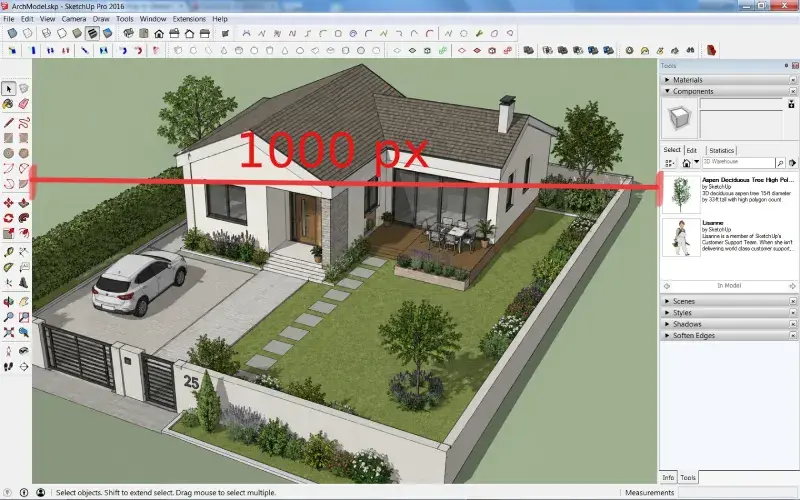
A long edge of 1,000 px or more
The floor below which geometry stops reading.

.skp and .skb model files
Not accepted, and not needed.
Viewport Screenshots and Image Exports
Two capture routes reach ArchiGPT: a viewport screenshot for speed during design, and File > Export > 2D Graphic when controlled pixel dimensions matter. A larger export improves the SketchUp render, so we recommend the 2D Graphic route for a high quality render destined for print.
The SketchUp Model File
The .skp file never leaves the workstation, because ArchiGPT reads an image rather than a model. Two consequences follow: client geometry stays off third-party servers, and no converter or version match is needed.
What Can Be Changed in a SketchUp AI Render?
A prompt and a style selection replace the settings panel of a render engine. No exposure or sample count control exists in the ArchiGPT workflow, and four levers carry the leverage: the prompt, the negative prompt, the style preset, and the source screenshot.

Materials and Finishes
Material assignment happens in the prompt rather than in the SketchUp model. An untextured massing model renders with described finishes, and a face already painted in SketchUp guides the ArchiGPT result instead. The material families we render reliably are given below:
-
Masonry — brick, blockwork, stone with a named bond.
-
Concrete — board-formed, precast, polished, exposed aggregate.
-
Timber — larch, oak, charred cladding, slatted screens.
-
Metal — standing-seam, perforated, anodised, weathering steel.
-
Glazing — clear, tinted or fritted, with a stated reflectivity.
Facade-led work continues on our facade design page.

Lighting and Time of Day
Lighting is described in words, so no light objects are placed in the SketchUp model beforehand. Described conditions replace an HDRI setup, and global illumination appears as an outcome rather than a setting. The lighting conditions ArchiGPT renders reliably are given below:
-
Clear midday sun — hard shadows, strong material contrast.
-
Golden hour — low warm light across a facade.
-
Overcast diffuse light — even illumination favouring material reading.
-
Night render — interior spill, street lighting, reflective paving.
SketchUp shadow settings still matter, because the sun position in the screenshot sets the shadow direction ArchiGPT follows.

Realism and Image Quality
Realism in a SketchUp render comes from three inputs: a clean screenshot, a specific prompt and a consistent light description. Style transfer and upscaling refine an ArchiGPT image that already reads correctly. The three realism levers are given below:
-
Capture a long edge of 1,000 px or more with unwanted edges hidden.
-
Name materials with a finish and a colour rather than a generic word.
-
Fix one light condition and one camera height per set of views.
Image quality carries an honest ceiling: legibility of the source screenshot limits the ArchiGPT render.
What Are the Use Cases of SketchUp AI Rendering?
SketchUp AI rendering serves the moment a model is presentable but not yet worth a render-engine setup. Architects test massing options, interior designers present finishes while rooms stay empty, students produce studio boards to a deadline, and small practices prepare a client meeting. Several SketchUp Scenes rendered under one light description form a coherent ArchiGPT view set.
Interior Designers
Interior designers render a SketchUp room view to show finishes, furniture and light before any material is ordered. An empty modelled room fills with described furniture through the ArchiGPT prompt. Depth continues on our AI interior render and virtual staging pages.
Architects
Architects render a SketchUp massing model to test a facade, a material palette or a site relationship in front of a client. Eye-level views carry the street reading, aerial views carry the site context, and facade studies run as an ArchiGPT series from one saved Scene. Our exterior rendering and masterplan rendering pages carry the detail.
What Are SketchUp to Render Examples?
A SketchUp to render example pairs a captured viewport with the image ArchiGPT generated from that viewport. The pairings our workflow produces most often are given below:
White massing model to daylit exterior — a Monochrome capture rendered at golden hour.
Shaded interior view to furnished room — an empty room rendered with finishes.
Facade elevation view to material study — one frozen camera across a material series.
Aerial Scene to masterplan visual — a site model rendered with paving and context.
Terrace view to planted landscape — an outdoor Scene rendered with mature planting, covered on our landscape design and garden design pages.
Can a SketchUp Model Be Rendered Without a Plugin?
A SketchUp model renders without a plugin, because the AI render works from an exported image rather than from inside SketchUp. Most readers arrive expecting an extension, and ArchiGPT installs nothing into SketchUp. The SketchUp editions that feed an ArchiGPT render are given below:
SketchUp Pro and SketchUp Studio — desktop screenshots and 2D Graphic exports.
SketchUp Go — subscription desktop and iPad capture.
SketchUp Free and SketchUp for Web — browser capture, no installation.
SketchUp Make 2017 and Google SketchUp — capture from legacy releases.
Our 3D model render workflow follows the same browser-based logic, since SketchUp is the only application running locally.
How Else Can You Render a SketchUp Model?
Three routes render a SketchUp model: an AI rendering service, a real-time engine and an offline physically based engine. Ray tracing and path tracing deliver measured global illumination, real-time rendering delivers immediate feedback, and ArchiGPT delivers a presentable image from a screenshot. The SketchUp rendering methods compared across setup, time and cost are given below:
Method | Setup | Time to First Image | Best Stage | What Is Paid |
|---|---|---|---|---|
ArchiGPT AI render | None | Seconds | Concept and review | ArchiGPT plan |
AI Render inside SketchUp | None | Minutes | Sketching inside SketchUp | Subscription and AI credits |
V-Ray for SketchUp | Minutes to hours | Minutes to hours | Production photoreal | Engine licence |
Enscape or D5 Render | Minutes to hours | Minutes | Design review | Engine licence |
Twinmotion or Lumion | Hours to days | Minutes | Animation | Application licence |
Blender with Cycles | Hours to days | Minutes to hours | Free photoreal | No licence fee |
Enscape, D5 Render and the Real-Time Engines
Enscape and D5 Render link live to the SketchUp model and update the image as the geometry changes. Real-time rendering removes double work, since one model drives stills, walkthroughs and animation, and the requirement is a dedicated GPU. Extensions of this class publish a supported SketchUp version range, while ArchiGPT publishes none.
Where AI Rendering Ends and a Render Engine Begins
AI rendering ends where measured accuracy begins. ArchiGPT produces a visual for concept review, option comparison and client approval. V-Ray, Enscape or D5 Render take the SketchUp model forward once a daylight study or a construction-stage image enters the brief.
V-Ray and the Offline Render Engines
V-Ray for SketchUp is the reference offline renderer for SketchUp, and V-Ray produces the measured light simulation a final photoreal image needs. Offline engines trace rays and sample PBR materials against an HDRI environment, at the cost of setup and render time. ArchiGPT sits earlier in the same SketchUp project.
The offline engines serving SketchUp alongside V-Ray are given below:
-
Maxwell Render — unbiased spectral rendering.
-
Octane Render — GPU path tracing.
-
SU Podium — preset-led photoreal rendering.
-
Twilight Render — presets built around SketchUp.
SketchUp Render Routes Without a Licence Fee
Rendering a SketchUp model without a licence fee happens in two ways: free-to-use engines, and SketchUp's own display styles. Naming which routes cost money and which cost setup time matters more than the word free.
The low-cost routes to a SketchUp render are given below:
Twilight Render Hobby — a free edition with feature limits.
Kerkythea — a free standalone engine with a SketchUp exporter.
SketchUp styles — a free non-photoreal presentation look.
ArchiGPT — browser AI rendering on a plan published on our pricing page.
The AI Render Feature Inside SketchUp
Trimble ships an AI Render feature inside SketchUp, and the feature requires an active SketchUp Go, Pro or Studio subscription plus SketchUp AI credits. SketchUp documents the feature as available on SketchUp for Desktop, SketchUp for iPad and SketchUp for Web. ArchiGPT works from any edition instead, including SketchUp Free and SketchUp Make 2017, because the input is a screenshot rather than a live session.
Which Other Inputs Can Be Rendered Besides a SketchUp Model?
Every input that produces a legible image of a design renders through the same four steps as a SketchUp view. The capture instruction changes with the source software, while upload, prompt and generation stay identical across the ArchiGPT range. Our AI render tools hub lists every input.
Revit and AutoCAD Views
Two sibling CAD workflows sit closest to the SketchUp route into ArchiGPT. Revit users export a 3D view in Consistent Colors or a white-material view template. AutoCAD users capture the 3D view in a Shaded visual style, with no material or light assignment required beforehand. Our Revit to render and AutoCAD to render pages document each route.
Floor Plans, Sketches and Photographs
Three non-model inputs complete the ArchiGPT range. A 2D floor plan becomes a furnished visual as a JPG, PNG or PDF page, owned by our floor plan to render page. A hand sketch runs through our sketch to render page, and a site photograph re-renders through photo to render.
/
Basic
Perfect for personal and casual use cases.
$19
/month
billed monthly
100 images
Commercial use
Variation
Render history
Upscale
Pro
Most popular
$39
/month
billed monthly
250 images
Commercial use
Variation
Render history
Upscale
Premium
Ideal for professionals and power users.
$79
/month
billed monthly
500 images
Commercial use
Variation
Render history
Upscale
Ultra
Built for teams, studios, and high-volume creators
$149
/month
billed monthly
1000 images
Commercial use
Variation
Render history
Upscale
Basic
Perfect for personal and casual use cases.
$10
/month
billed yearly $120
6 months free
100 images
Commercial use
Variation
Render history
Upscale
Pro
Most popular
Designed for creators ready to level up.
$20
/month
billed yearly $240
6 months free
250 images
Commercial use
Variation
Render history
Upscale
Premium
Ideal for professionals and power users.
$40
/month
billed yearly $480
6 months free
500 images
Commercial use
Variation
Render history
Upscale
Ultra
Built for teams, studios, and high-volume creators
$75
/month
billed yearly $900
6 months free
1000 images
Commercial use
Variation
Render history
Upscale
One time payment
One-time
$49
/month
billed one time - NO subscription
250 images
Commercial use
Variation
Render history
Upscale
Expires in 30 days
Which SketchUp Render Routes Carry No Licence Fee?
Twilight Render Hobby, Kerkythea and Blender render a SketchUp model at no licence cost, in exchange for setup time. ArchiGPT charges by image allowance rather than by licence, and our pricing page carries every current plan.
Can a SketchUp Model Be Rendered on a Mac?
A SketchUp model renders on a Mac exactly as on Windows, because the ArchiGPT render runs in the browser rather than on the local GPU. Apple Silicon machines, Intel Macs and SketchUp for iPad all produce the screenshot the workflow requires.
Does the Workflow Support SketchUp Make 2017 and Google SketchUp?
Every SketchUp version produces a compatible input, because the input is a screenshot rather than a model file. SketchUp Make 2017, the legacy Google SketchUp releases, SketchUp Free and the current Pro and Studio releases all export a JPG or a PNG. Plugins declare a supported version range, and an ArchiGPT screenshot workflow declares none.
Can a SketchUp AI Render Produce a 360 Panorama or an Animation?
A SketchUp AI render produces still images rather than 360 panoramas or animations. Real-time engines own those outputs, so Enscape, D5 Render or Twinmotion produce the panorama. ArchiGPT answers with up to 4 images per generation from several SketchUp Scenes, as one view set.
How Do You Make a SketchUp Render Look Realistic?
A SketchUp render looks realistic when the screenshot is clean, the materials are named precisely and one light condition governs the whole image. Hiding profiles and unwanted edges before capture removes the cartoon outline that betrays a SketchUp source. The framing section above covers the settings ArchiGPT reads best.
Does an AI Render Match the Dimensions of the SketchUp Model?
An AI render is a visual rather than a measured drawing, so the image is not dimensionally exact. Proportion and composition follow the captured viewport closely, while ArchiGPT generates surfaces and entourage rather than measuring them.