3D Model to Render
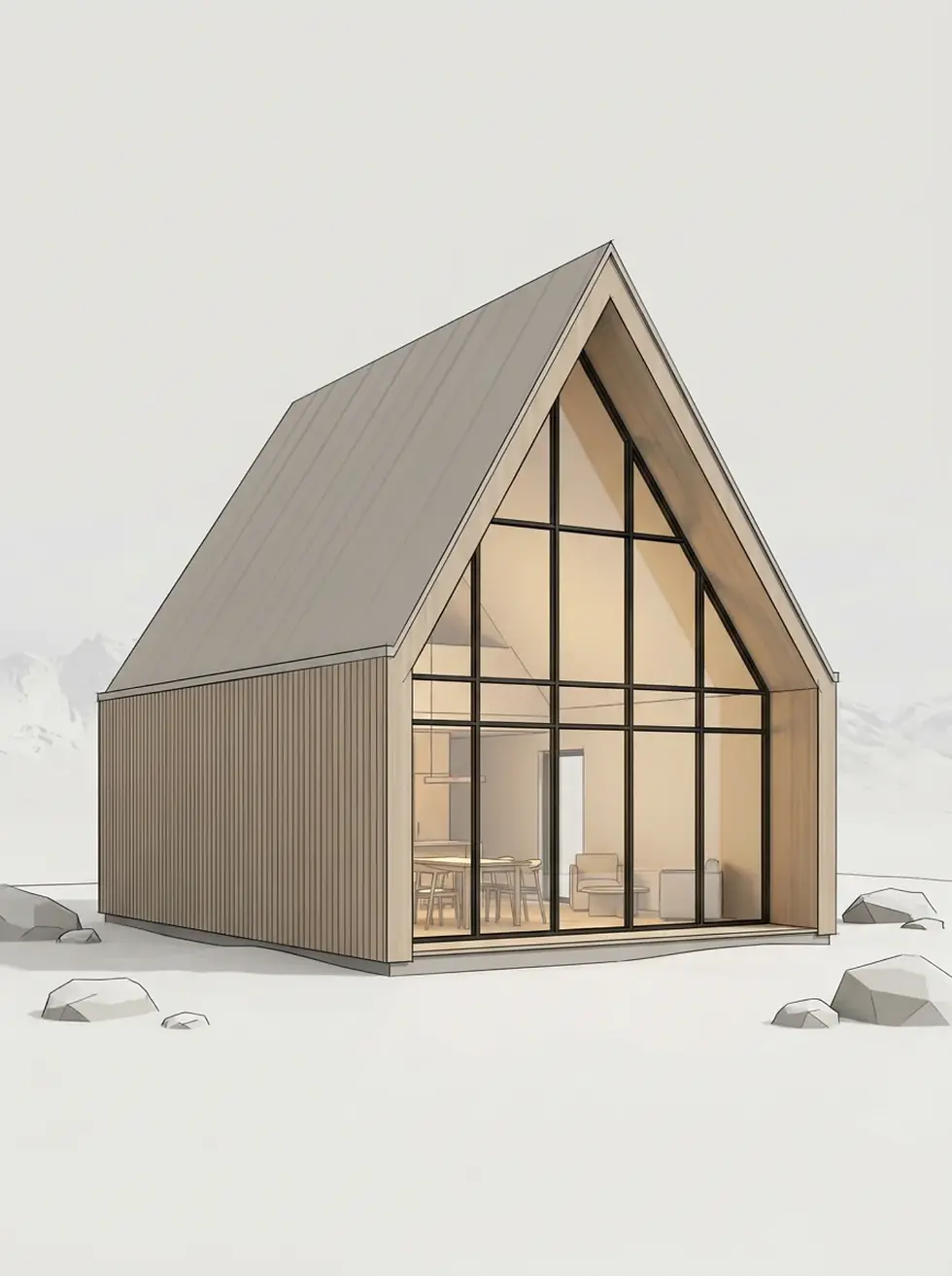
3D model to render is the process of converting a viewport screenshot of a 3D model into a photorealistic render with AI.
No learning curve
No GPU needed
No render farm
SketchUp, Blender, Revit, Rhino, 3ds Max, AutoCAD and Archicad views all work the same way: frame the view, upload the screenshot, and ArchiGPT's AI rendering tool returns the finished image.


3D MODEL
ARCHIGPT RENDER
SketchUp, Blender, Revit, Rhino, 3ds Max, AutoCAD and Archicad views all work the same way: frame the view, upload the screenshot, and ArchiGPT's AI rendering tool returns the finished image.
What Does It Mean to Render a 3D Model?
Rendering a 3D model means producing a finished, realistic image from the model's raw geometry — adding materials, lighting, shadows and context that the working model does not show. Traditionally that computation runs in a render engine; with AI, the image is generated from a single view of the model instead.
That single-view approach is what makes the workflow four steps long.
How Do You Render a 3D Model with AI?
A 3D model is rendered with AI in 4 steps: frame, upload, describe, generate.
Get your model ready
Frame the view in your 3D software and take a viewport screenshot, or export a clay render.
A white or clay model gives the AI the most freedom to apply prompted materials; a textured model constrains the output toward the materials already applied. The screenshot route works identically from every major 3D package.
Upload it
Upload the image (JPG, PNG — up to 4 per generation)
Enter prompt
Describe materials, lighting and context in the prompt.
Generate
Generate, edit, refine and download the final realistic render in seconds.
Which 3D Software Can Be Used?
The 3D software that can be used is listed below — any tool with a viewport works. Whichever package the view comes from, professionals ask the same first question about the output.
SketchUp
Take a viewport screenshot in a Monochrome or Shaded style; hide edges you do not want emphasized.
Revit
Export a 3D view in Consistent Colors or a white-material view template.
Blender
Screenshot the viewport in Solid mode or export a quick Workbench clay render — no Cycles or Eevee setup needed.
Rhino
Use an Arctic display-mode capture; Arctic's clay look renders especially cleanly.
AutoCAD
Capture the 3D view in a Shaded visual style; no material or light assignment is required beforehand.
3ds Max / Archicad
Capture the viewport in default shading or export a white-model view.
Does AI Rendering Preserve the Model Geometry?
Yes — the edges, proportions and camera angle of the uploaded view are preserved; the AI replaces materials, lighting and entourage. The render shows your model, not a lookalike building.
One honest boundary: complex curved geometry can soften at high stylization settings. Prompting a lower stylization level keeps tight curves and thin profiles intact.
*With geometry held constant, the next question is which software category should produce the final image at all.

Which Software Renders 3D Models?
Software that renders 3D models falls into three categories: AI renderers that generate from a view, render engines that compute physical light on the full model, and the basic renderers built into modeling tools. The comparison below is honest in both directions.
Aspect | AI Renderer (ArchiGPT) | Render Engines (V-Ray / Lumion / Enscape) | Built-in Renderers (SketchUp, Blender Workbench) |
|---|---|---|---|
Setup time | None — upload a screenshot | Scene | material and light setup per project |
Cost | From $19/month | License/subscription plus hardware | Included with the modeler |
Hardware | Any computer with a browser | Dedicated GPU workstation | Depends on scene size |
Time per image | Seconds | Minutes to hours per frame | Minutes |
Photorealism | High, view-based | Highest, physically simulated | Low — working views, not presentation images |
Animation | Not supported | Supported (flythroughs, films) | Limited |
Engines win on animation and physical accuracy; built-in renderers win on price; AI wins on speed, cost, hardware and iteration count. The categories combine well in practice — AI for concept iteration, an engine for the final marketing film.
The style layer sits on top of whichever route produces the image.
What Are 3D Model to Render Examples?
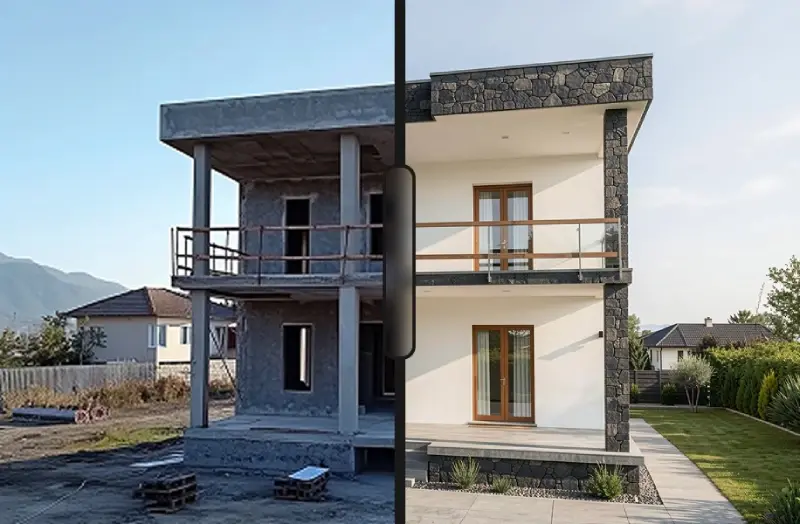
3D model to render examples cover four source packages: SketchUp, Blender, Revit and Rhino. Each pair shows the raw viewport next to the generated render with the software, style and render time named.


Before
After
Before
After
Model views are one of five inputs the same generator accepts.

Which Other Inputs Can Be Rendered Besides 3D Models?
Besides 3D models, ArchiGPT renders sketches, photos, and floor plans.

How do you render a Blender model without engine setup?
Screenshot the viewport in Solid mode and upload it — the AI generates the photorealistic image with no Cycles or Eevee configuration.
How do you render a SketchUp model with AI?
Capture the viewport (Monochrome or Shaded style) and upload the screenshot; no plugin is installed in SketchUp.
Do you need a GPU to render 3D models?
Not with AI rendering — processing runs in the cloud; render engines, by contrast, need a dedicated GPU workstation.
Can massing/clay models be rendered?
Yes — clay and massing views are the ideal input because the prompt fully controls materials.
Are OBJ/FBX file uploads supported or screenshots only?
Screenshots and image exports only — no model files are uploaded, which also keeps the model itself off the server.
Can renders be upscaled for print?
Yes — upscaling is included in every plan for presentation and print output.
3D Model to Render FAQs
How Long Does 3D Model Rendering Take and What Does It Cost?
3D model rendering takes seconds per image with ArchiGPT — under a minute, against minutes to hours per frame in a traditional engine. Plans start at $19 per month; the current figures are on the pricing page.
Annual billing includes 6 months free, all plans include commercial use, upscaling and render history, and no GPU is required at any plan level. The proof of the workflow is in per-software examples.
/
Basic
Perfect for personal and casual use cases.
$19
/month
billed monthly
100 images
Commercial use
Variation
Render history
Upscale
Pro
Most popular
Designed for creators ready to level up.
$39
/month
billed monthly
250 images
Commercial use
Variation
Render history
Upscale
Premium
Ideal for professionals and power users.
$79
/month
billed monthly
500 images
Commercial use
Variation
Render history
Upscale
Ultra
Built for teams, studios, and high-volume creators
$149
/month
billed monthly
1000 images
Commercial use
Variation
Render history
Upscale
Basic
Perfect for personal and casual use cases.
$10
/month
billed yearly $120
6 months free
100 images
Commercial use
Variation
Render history
Upscale
Pro
Most popular
Designed for creators ready to level up.
$20
/month
billed yearly $240
6 months free
250 images
Commercial use
Variation
Render history
Upscale
Premium
Ideal for professionals and power users.
$40
/month
billed yearly $480
6 months free
500 images
Commercial use
Variation
Render history
Upscale
Ultra
Built for teams, studios, and high-volume creators
$75
/month
billed yearly $900
6 months free
1000 images
Commercial use
Variation
Render history
Upscale
One time payment
One-time
$49
/month
billed one time - NO subscription
250 images
Commercial use
Variation
Render history
Upscale
Expires in 30 days