AI Different Angle Generator
An AI different angle generator creates a new camera view of an existing render or photo without a 3D model and without a reshoot. One single image of a building or an interior becomes a full set of presentation views, so a perspective render turns into a front elevation, a top-down view, or a close-up shot of a material detail in seconds.
Architects present facades, interior designers present material details through close-up shots, and real estate professionals fill missing camera angles of a listing from a single photo. The workflow stays short: upload the image, describe the target camera angle, and generate a photorealistic result in the browser. Every generated view contains inferred geometry the camera never captured, so multiple views produced from one image serve concept and presentation rather than documentation.
ArchiGPT is the browser-based AI rendering tool that generates the different angles described on the current page, with no plugin, no GPU, and no installed software.
No GPU needed
Photorealistic results
How Do You Generate a Different Angle of an Image with AI?
Generating a different angle of an image with AI takes four steps in the browser. The process starts from one existing render or photo and ends with a new camera angle. The four steps of generating a different angle are listed below:
Upload the image
Add a render, a photo, or a screenshot.
Describe the target camera angle
Type the requested viewpoint into the prompt field.
Generate the new view
The AI produces the angled result in seconds.
Review and reuse the result
Check the output and reuse the prompt for a full shot series.
We expand each of the four steps below, starting with the image upload.
Upload the image
Describe the target camera angle
Generate the new view
Review and reuse the result
Upload a render, a photo, or a screenshot of the building or interior to ArchiGPT. Use an exterior render for a building view, an interior render for a room view, or an on-site photo when no render exists. Provide one single image only. The different angle generator needs no photo series and no 3D model. Drag a screenshot from any design tool into the browser when no export exists. Prepare the clearest available image before describing the camera angle.
Describe the target camera angle in the prompt field, such as a front elevation, a top-down view, or a close-up of a material detail. Write the prompt the way an architect briefs a photographer, naming the camera position and framing. The prompt "adjust the camera angle to a frontal orthogonal view to emphasize symmetry and façade design details" converts a perspective render into a facade view in a live ArchiGPT demo. A named elevation, top-down, or close-up shot request returns predictable framing. A precise camera description prepares the generation step.
Generate the new view and receive a photorealistic result in seconds. ArchiGPT reconstructs depth and spatial structure from the source and renders the requested image view in under 60 seconds, directly in the browser. The same engine behind the core AI render generator produces the new angle, so a generated view carries the photorealistic quality of a fresh render. The AI render generator handles full render creation. No render farm, no GPU, and no plugin take part in the generation. A finished view invites the review step below.
Review the generated angle and reuse the same prompt on further images when a full shot series is needed. Check the framing, material continuity, and lighting against the source image, and refine the prompt when the result misses the request. ArchiGPT places a Reuse action next to every generation on the live demo pages, so the exact prompt transfers to the next render. Reviewing a single view raises the next question: which camera angles the AI generates from one image.
Which Camera Angles Can Be Generated with AI?
AI generates six camera angle types from a single architectural image. The camera angle types generated from one image are listed below:
-
Front elevation: an orthogonal view of the facade.
-
Eye-level perspective: a street-height viewpoint of the building or the room.
-
Three-quarter view: an angled position that shows two facades in one frame.
-
Aerial / top-down view: a straight-down view of the building or the interior.
-
Close-up detail shot: a tight frame on one material or furniture element.
-
Multi-shot board: a 2×2 grid of coordinated close-ups generated in one pass.
We confirmed the front elevation, top-down view, close-up shot, and multi-shot board in the live demo library.


ArchiGPT · Eye-level render (left) / Top-down view (right)
The aerial view above was generated from an eye-level render of a minimalist living room with the furniture preserved. Every camera angle in the list starts from an accepted input image, which the next section defines.
Which Inputs Does the AI Different Angle Generator Accept?
The AI different angle generator accepts exterior renders, interior renders, building photos, and interior photos. Screenshots from any design tool form the fifth accepted input. Every accepted input uploads as a JPG or PNG file, the upload formats shared across the ArchiGPT editing tools. The accepted input types are listed below:
-
Exterior renders: perspective visualizations of a building.
-
Interior renders: room visualizations.
-
Building photos: photographs of a built project.
-
Interior photos: photographs of an existing space.
-
Screenshots: viewport captures from design software.
Photo to render forms the exact complement of the current tool: photo to render keeps the camera angle fixed while materials and context change, whereas the different angle generator keeps the design fixed while the camera moves. Every accepted input falls into one of two families, exterior or interior images, with framing goals described next.
What Should You Know About Exterior and Interior Angle Generation?
Exterior and interior images follow the same angle generation process with different framing goals. Exterior angle generation presents the building mass and the facade from a new camera position. Interior angle generation presents space and material detail through top-down views and close-ups. One requirement spans both families: lighting stays consistent across every generated shot. The three questions below cover building perspective, interior close-up, and the shared lighting rule.


ArchiGPT · Perspective render (left) / Generated front elevation (right)
How Do You Generate a Different Perspective of a Building?
A different perspective of a building is generated by keeping the materials, lighting, and landscaping fixed while the camera moves to the requested position. A live demo shows the pattern: a perspective visualization of a two-story house becomes a front elevation render that emphasizes symmetry and facade design details, with the landscaping unchanged between the two views. The prompt names the target position, and the AI treats every visible element of the source as fixed reference geometry. One boundary stays firm: creating an exterior render from scratch belongs to exterior rendering, and the exterior rendering page owns that context, while the current page owns moving the camera around an existing image.
The before/after pair above shows the perspective source next to the generated front elevation. A building exterior answers one half of the framing question; the interior close-up answers the other half.


ArchiGPT · Hallway render (left) / 2×2 close-up board (right)
How Do You Generate a Close-Up Shot of an Interior?
A close-up shot of an interior is generated by isolating one material or furniture detail from the wider render. Two live demos show the range. One generation turns a pastel hallway render into a 2×2 board of coordinated close-ups: a fuzzy rug, a stained-glass door, a plush sofa surface, and a carved wooden cabinet. A second demo generates a top-down view from a living room render. Each close-up shot reads as a dedicated material detail photograph and gives suppliers a texture reference beyond the wide interior render. A close-up board also serves as the checkpoint before an edit: an AI room editor changes textures and furniture styles inside an existing interior render, and the AI room editor applies those changes once the board reveals which detail needs work.
The board above was generated from one hallway render in a single pass. Close-up shots and boards share one production rule, consistent lighting, which the next section explains.

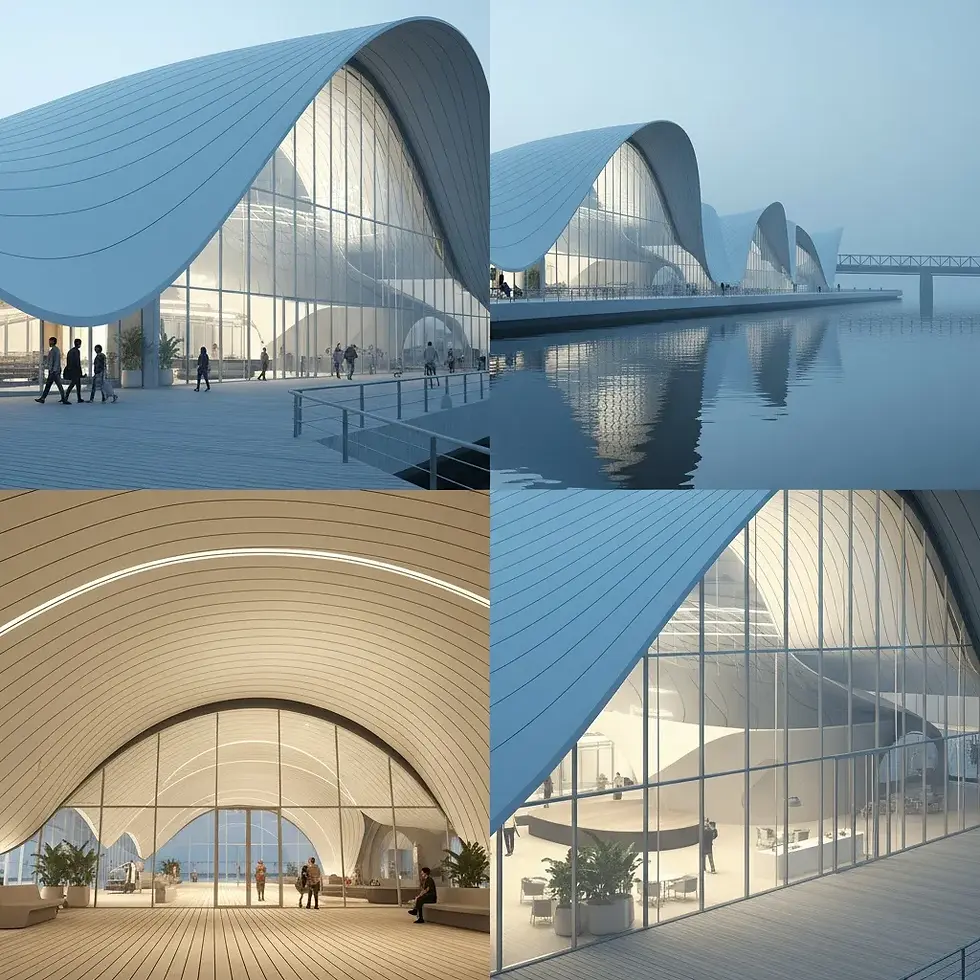
ArchiGPT · Exterior render (left) / 2×2 close-up board (right)
How Do You Keep Lighting Consistent Across Generated Shots?
Consistent lighting across generated shots is achieved by instructing the AI to keep the identical lighting tone in every view. The instruction appears verbatim in a live ArchiGPT demo prompt: "Maintain the same lighting tone and atmosphere for visual consistency across all shots". The quoted prompt produces a 2×2 close-up board from an exterior render of a waveform pavilion, so close-up boards and lighting consistency apply to exterior and interior images alike. Consistency matters on a presentation board because four shots with one lighting tone read as one project. Changing the lighting itself, rather than preserving the current lighting, is a separate task: AI relighting adjusts light direction, time of day, and atmosphere in an existing render, and the AI relighting tool owns that context.
The exterior board above keeps one lighting tone across all four generated shots. A consistent shot series raises the accuracy question, which the next section answers.
How Accurate Is an AI-Generated Different Angle?
An AI-generated different angle is a plausible reconstruction of the scene, not a measured survey of the building. The distinction sets the accuracy expectation: the AI infers geometry the camera never captured. The limits of AI angle generation are listed below:
-
Unseen geometry is a proposal: an unseen rear facade or a hidden junction is inferred geometry, a design proposal rather than a record of the building.
-
Small details may shift: mullion counts and fixture positions may shift between views.
-
Dimensions are generated: every dimension in the new view is generated, not measured.
-
Documentation stays out of scope: a generated angle is not valid for construction documentation, permit drawings, or as-built records, and does not replace a measured drawing.
We recommend one workflow: use generated angles for concept and presentation, and keep the CAD or BIM model for documentation. Accuracy trade-offs separate AI angle generation from the alternative methods, which the comparison below quantifies.
How Does AI Angle Generation Compare with Other Methods?
AI angle generation trades measured accuracy for speed when compared with re-rendering a 3D model or reshooting the site. The comparison of the four methods for obtaining a new view is given below:
Method | Requirement | Typical time | Geometry accuracy |
|---|---|---|---|
AI different angle generator (ArchiGPT) | One image | Under 60 seconds | Plausible inferred geometry |
Re-render from a 3D model (SketchUp, Revit + V-Ray or Enscape) | Full 3D model | Model setup + minutes per view | Exact geometry |
New photo shoot | Site access and a photographer | Hours to days | Exact geometry |
Generic photo angle tools (Fotor, Overchat AI, MagicShot, GoStudio.ai) | One image | Seconds to minutes | Plausible geometry, no architecture-specific controls |
Each method earns a place: a re-render delivers exact geometry, a reshoot delivers reality, and the generic photo angle tools serve products and portraits rather than buildings. The AI different angle generator wins the scenario of one image, an architectural subject, and a deadline measured in seconds, a scenario the use cases below make concrete.
What Are the Use Cases of an AI Different Angle Generator?
The main use case of an AI different angle generator is presenting one design from several camera views without rebuilding the scene. The use cases of AI angle generation are listed below:
-
Client presentation boards: multi-view 2×2 boards from one render give a client four coordinated shots.
-
Design reviews: a facade designed in perspective is checked from a generated front elevation view.
-
Real estate listings: missing camera angles of a property are filled from the available photos; virtual staging furnishes the empty views, and the virtual staging tool completes the listing.
-
Portfolio and marketing images: one finished render expands into a varied set of shots for a portfolio page.
-
Detail communication: close-up shots of materials brief contractors and suppliers, with the restated accuracy caveat that a generated shot communicates design intent, not measured dimensions.
Every use case runs on the same plan credits, which raises the cost question answered below.
How Much Does Generating a Different Angle Cost?
Generating a different angle costs the same as any ArchiGPT render, with plans starting at $19 per month for 100 images. An annual option lowers the cost to $10 per month billed yearly, and a one-time package covers 250 images for $49 with a 30-day validity window. No separate fee applies to angle generation. Every generated view consumes one image credit. The pricing model counts images rather than tools, and the pricing page lists the full plan comparison. The live site lists no free tier. One plan covers every input type, including a single photo, which leads to the question below.
Can AI Generate a Different Angle from a Single Photo?
Yes, AI can generate a different angle from a single photo. The model builds a reconstruction of depth and spatial structure from one image, which is why no photo series and no 3D model are required. The fewer visual cues the single photo contains, the more the AI infers, so a clear photo produces different angles of the same image with higher fidelity than a blurry source. A single photo settles the input question; the documentation question follows below.
Can a Generated Angle Be Used for Construction Documentation?
No, a generated angle is not suitable for use in construction documentation. A generated angle contains inferred geometry and generated dimensions, while construction documentation requires measured drawings produced from the CAD or BIM model. A generated view does not replace those drawings. Angle generation belongs in the presentation stage, alongside the complementary AI tools described next.
Which Other AI Render Tools Complement the Different Angle Generator?
Different angle generation pairs with the other ArchiGPT editing tools in one browser workflow. The workflow we recommend runs in one line: generate a base render, produce new angles of the result, then edit materials, lighting, or objects in the generated views. Every tool follows the same upload-describe-generate pattern, and the complete family of AI render tools sits on one hub. The AI render tools hub lists each generation and editing tool. The four cards below link to the closest editing tools.
/
Basic
Perfect for personal and casual use cases.
$19
/month
billed monthly
100 images
Commercial use
Variation
Render history
Upscale
Pro
Most popular
Designed for creators ready to level up.
$39
/month
billed monthly
250 images
Commercial use
Variation
Render history
Upscale
Premium
Ideal for professionals and power users.
$79
/month
billed monthly
500 images
Commercial use
Variation
Render history
Upscale
Ultra
Built for teams, studios, and high-volume creators
$149
/month
billed monthly
1000 images
Commercial use
Variation
Render history
Upscale
Basic
Perfect for personal and casual use cases.
$10
/month
billed yearly $120
6 months free
100 images
Commercial use
Variation
Render history
Upscale
Pro
Most popular
Designed for creators ready to level up.
$20
/month
billed yearly $240
6 months free
250 images
Commercial use
Variation
Render history
Upscale
Premium
Ideal for professionals and power users.
$40
/month
billed yearly $480
6 months free
500 images
Commercial use
Variation
Render history
Upscale
Ultra
Built for teams, studios, and high-volume creators
$75
/month
billed yearly $900
6 months free
1000 images
Commercial use
Variation
Render history
Upscale
One time payment
One-time
$49
billed one time - NO subscription
250 images
Commercial use
Variation
Render history
Upscale
Expires in 30 days
furnish an empty room from one photo
place furniture and objects into a render
change materials and style on an existing building
remove objects from a photo
Explore more edit & enhance tools
Does the new angle keep materials and lighting the same?
Yes, the new angle keeps building materials, lighting, and landscaping consistent with the source image. The wording "Maintain building materials, lighting, and landscaping" appears verbatim in the live ArchiGPT demo prompts. Exact material continuity depends on how visible the material is in the source view.
Can AI show the back of a building from a front photo?
Yes, AI can show the back of a building from a front photo by inferring the unseen geometry. The generated rear facade is a plausible design proposal, not a record of the real building, as the accuracy section above explains.
How many close-up shots does one generation produce?
One close-up generation produces a 2×2 board with four coordinated shots of the render. Both live close-up demos, the pastel hallway interior and the waveform pavilion exterior, deliver the same four-shot board format.
Can ChatGPT create a different angle of a photo?
Yes, ChatGPT can create an image that resembles a different angle of a photo, yet a general chatbot offers no control over architectural geometry, material continuity, or shot-to-shot consistency. A dedicated different angle generator preserves the design while moving only the camera.
Is the AI different angle generator free to use?
No, the AI different angle generator is not free to use. Access is included in ArchiGPT plans starting at $19 per month, with a $10 per month annual option. The figures match the cost section above, and the live site lists no free tier.
AI Different Angle Generator FAQs
The most common questions about the AI different angle generator are answered below.